Better workflows
How to use VST instruments in a shared browser music project
Keep the instrument sound you love and make the handoff useful. Build a performance with SODIUM COLLAB Computer Link, then bring collaborators into the song.
Start with the musical reason for the instrument
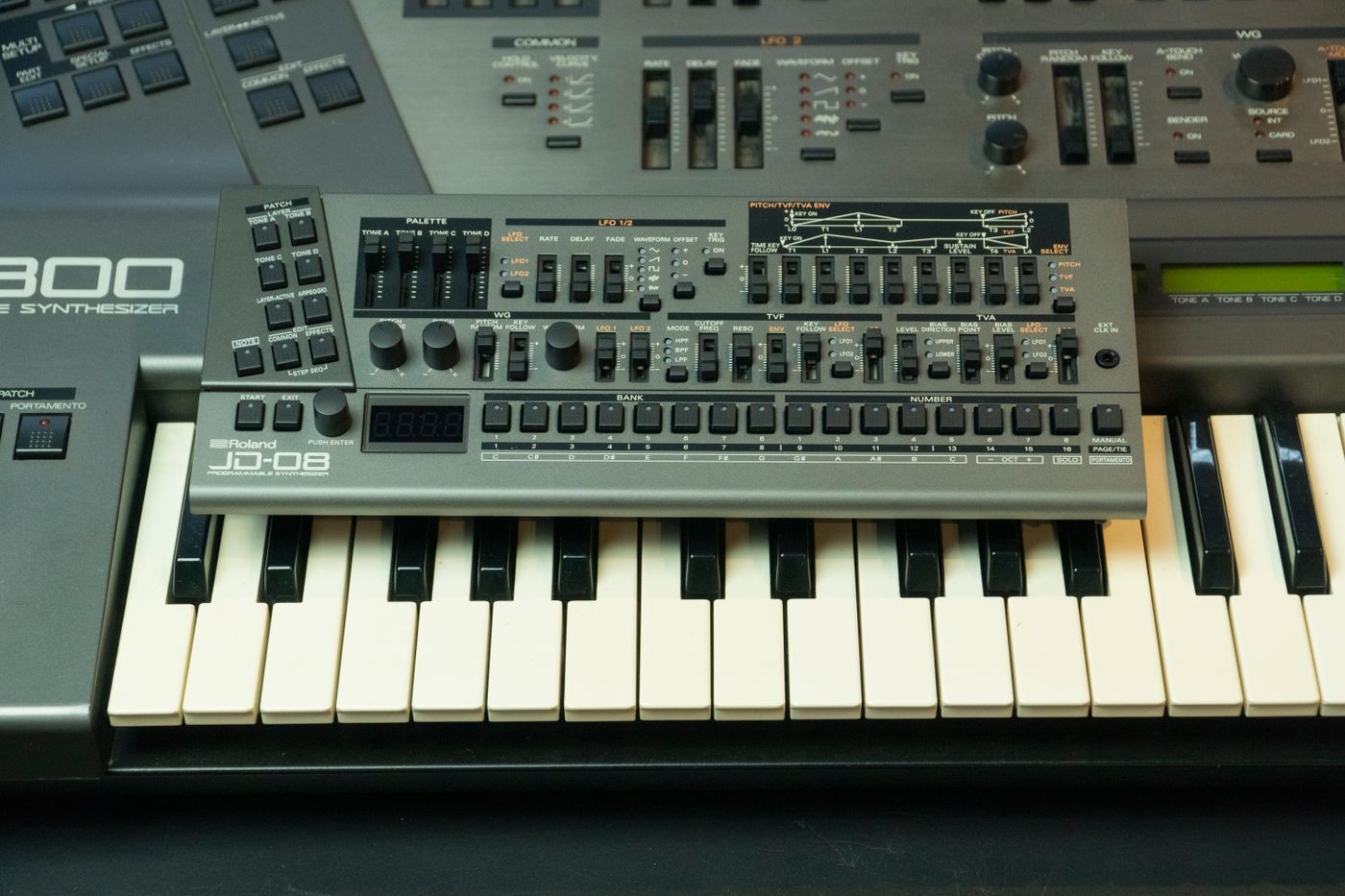
A particular native instrument may have a patch or response that suits your song. Identify what you want from it: a bass tone, an expressive lead or a distinctive chord texture. You do not need to host every plugin in a collection to make that benefit useful. Choose the instrument because it helps the part you are writing.
SODIUM COLLAB is a browser music studio with built-in instruments, recording, arrangement and shared projects. Its Computer Link workflow adds eligible compatible VST3 instrument use through a Windows helper. We recommend this connected approach when you want a native instrument performance to become part of a browser arrangement that other musicians can develop.
Prepare the supported Computer Link setup
Use the Windows Computer Link helper and the compatible VST3 instrument you are licensed to use. Confirm that your account has access to this workflow. The supported native hosting scope is instruments, with one live generator at a time. Native effects, VST2 and AU are outside this setup, so choose a suitable VST3 instrument for the session.
Follow the Computer Link setup in SODIUM COLLAB Learn, connect the helper and test the selected instrument with a short phrase. A clean first test is more useful than building a full arrangement before hearing whether the patch responds as intended. Keep built-in tracks available for the rest of the song so the native instrument has a clear musical role.
Write a part that explains the sound
Create a short MIDI phrase with the notes, rhythm and lengths the patch needs. A sustained pad and a sharp bass sound ask for different writing choices. Listen to the attack and release, especially where notes overlap. An appealing preset can still need a simpler phrase or a different register to work beside the arrangement.
Keep the MIDI source in SODIUM COLLAB while you develop the performance. Test one variation at a time and save a useful instrument state before a major change. With one live generator, make the current instrument contribution clear before switching to another sound. This encourages a focused session where the native tone serves a deliberate part of the song.
Choose the phrase you want collaborators to hear
Listen to the native instrument with the drums, harmony and vocal or guide part. Decide which performance represents the current song. Do not hand over several nearly identical options without saying which one matters. A useful shared version gives the recipient a clear starting point, while alternatives can remain available if the musical direction changes.
Use the supported SODIUM COLLAB rendering workflow to preserve the chosen instrument performance as audio. Include the intended release where it matters. The rendered result lets collaborators hear the sound as part of the arrangement without assuming they have the same plugin installed. Keep the original notes and saved instrument state so a later revision can still begin from the musical source.
Make the audio handoff easy to understand
Name the rendered part by its role and section, such as chorus lead or verse bass. Keep it at the intended position in the song. If someone will edit or mix it elsewhere, agree the starting point and provide a clear reference. A good sound loses usefulness when the recipient has to guess how it lines up with the rest of the session.
In SODIUM COLLAB, place the rendered performance beside the parts it supports and check the shared playback. Make sure the audio has finished saving before inviting a new contribution. A collaborator can then write against the intended sound rather than a missing instrument placeholder. This is the practical advantage of treating the native instrument as part of a shared song workflow.
Explain what remains open to revision
Tell the collaborator whether the rendered part is a firm musical choice or a draft. If the bass notes can change, say so. If the sound is the main identity of the track, ask them to leave space for it. Clear expectations prevent an otherwise good contribution from solving a different problem than the one you intended to share.
Use SODIUM COLLAB project chat for the section-specific discussion. A rendered instrument part is audio; it does not become editable plugin notes for every participant. Keep the source MIDI and instrument state for the person handling native revisions. When a note change is agreed, create an updated render and label the new version so the session does not contain two unclear keepers.
Keep licenses and creative permissions separate
Sharing a musical render does not transfer ownership of the native plugin or give every collaborator permission to use a commercial sound library independently. Use software and included material according to their license. If a patch includes licensed samples, check the permitted musical use. Keep the project invitation focused on the song rather than distributing a plugin or sample collection.
SODIUM COLLAB helps keep the performance and arrangement connected, while your tool licenses remain your responsibility. For a release collaboration, agree credits and permission to use each contribution before publication. Our collaboration release guide covers the practical preparation so the song can move from a shared session to an approved listening version.
Quick answers
Does every collaborator need my VST instrument?
A rendered performance preserves the intended audio without requiring the recipient to own that instrument. Keep the MIDI source and native setup available for the person making later plugin-based revisions.
Can I host native effects with Computer Link?
The current supported setup is compatible VST3 instruments through the Windows helper for eligible accounts, with one live generator at a time. Use the browser studio’s supported effects for the shared arrangement.